Table of Contents
What is AnyDesk?
AnyDesk is a popular remote desktop application that lets you access and control Windows PCs (and other devices) from anywhere. It provides high-speed, low-latency connections. This means you can interact with a remote Windows computer as if you were sitting in front of it, even on slower networks. AnyDesk offers platform-independent remote access (supporting Windows, macOS, Linux, Android, iOS, etc.), built-in file transfer and VPN features, and secure encryption for privacy.
In short, AnyDesk lets beginners and professionals alike quickly download AnyDesk for Windows and start remote support, file sharing, or remote work with minimal setup.
User Interface and Ease of Use
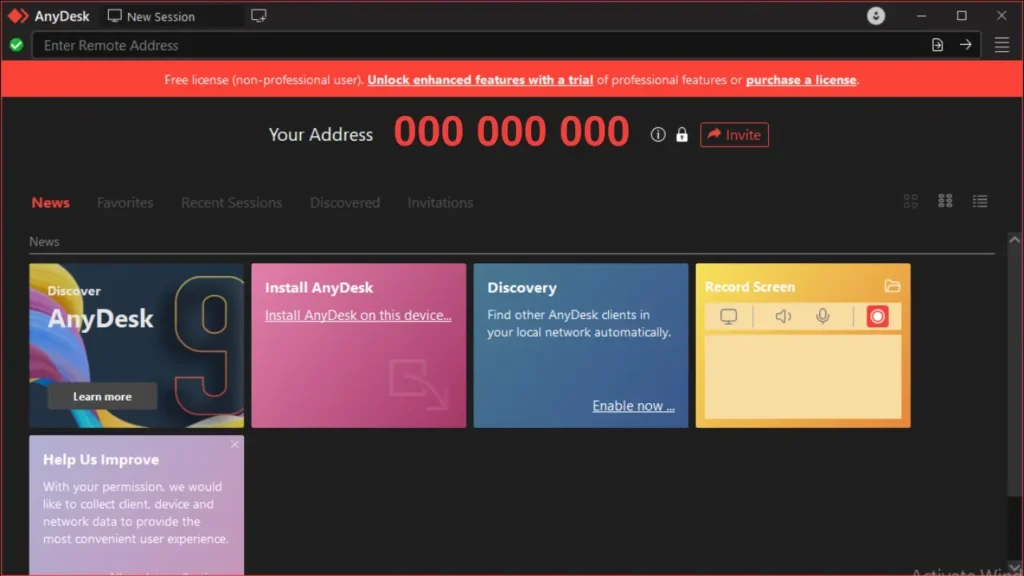
AnyDesk’s interface is clean and uncluttered, making it easy for new users to navigate. The main window simply shows “Your Address” (a 9-digit code) and a field to enter a Remote Desk address. From there, large buttons allow one-click connection or quick file transfers.
The UI has been praised as “intuitive and uncluttered”. For example, a Windows AnyDesk client displays a straightforward toolbar with key actions (connect, settings, chat, etc.) and an address book. Advanced features are tucked into menus and panels, keeping the layout uncluttered.
Overall, reviewers note that AnyDesk’s interface is one of the simplest to use for remote access, even for those who don’t have technical knowledge. This ease of use means you can download AnyDesk for Windows, go to the download link.
Why Use AnyDesk?
Anyone needing fast, reliable remote desktop access often turns to AnyDesk for several reasons:
Performance
AnyDesk uses the custom DeskRT video codec to deliver ultra-smooth on-screen visuals (60 fps on local networks) with minimal lag. Its latency on LAN is typically below 16 ms, so inputs (mouse, keyboard) feel instantaneous. This makes tasks like real-time collaboration or high-speed troubleshooting very responsive.
Efficient Bandwidth
Even on slow internet connections (as low as 100 kbps), AnyDesk remains usable. This efficiency sets it apart from heavier remote desktop tools.
Lightweight & Portable
The Windows executable is very small (around 7–8 MB) and can run without installation. You can simply run the AnyDesk.exe file (portably) on any Windows PC. If desired, you can install it via the on-screen “Install AnyDesk” option for quick access later.
Cross-Platform Compatibility
While this article focuses on Windows, AnyDesk also works on macOS, Linux, Android, iOS, and more. You can seamlessly connect a Windows PC to an Android phone or an iPhone, for example. This all-platform support (Windows, macOS, Linux, Android, iOS, etc.) means flexibility if you have different devices.
Intuitive UI
As noted, AnyDesk’s user interface is praised as intuitive and easy to use. Even if you have never used AnyDesk before, most users can connect to a remote PC or accept incoming assistance within seconds.
Free for Personal Use
AnyDesk offers a free version for personal/non-commercial users. This lets individuals use all the basic remote desktop features at no cost. For businesses or advanced needs, paid plans add more connections and features (see below).
Security
All AnyDesk sessions are end-to-end encrypted. You can also enable two-factor authentication and a whitelist of allowed devices for extra safety. These measures help keep your remote sessions private and secure.
Key Features of AnyDesk
AnyDesk includes many powerful features to enhance your remote desktop workflow. Major highlights include:
High-Speed Remote Control
Enjoy smooth desktop sharing at 60 frames per second with very low latency. On a Windows PC, you can seamlessly view and control the remote desktop — the smooth performance makes it feel as if you’re working directly on your own computer, without the slightest sense of lag.
File Transfer & Manager
AnyDesk has a built-in File Manager that lets you drag-and-drop or browse files between the local and remote Windows computers. Large files can be copied quickly without needing separate FTP or cloud transfer tools.
Unattended Access
You can set up Unattended Access by assigning a password on the Windows AnyDesk client. Then you can connect at any time without someone at the remote computer having to click “Accept.” This is ideal for remote monitoring or working on your home PC while you’re away.
Remote Printing
Print documents from the remote Windows computer to a local printer in your office or home. For example, you could remotely open a PDF on a Windows PC and print it on a nearby printer as if you were there.
Session Recording & Screenshots
AnyDesk can record your sessions or take screenshots on the Windows PC. This is useful for training, documentation, or audit trails of support sessions.
Collaboration Tools
Built-in text chat and Whiteboard features allow you to communicate and annotate during a session. You can draw on the screen or chat with the remote user without using a separate communication app.
Wake-on-LAN
With Wake-on-LAN enabled, you can power on a sleeping or shut-off Windows PC remotely (if configured) and then connect via AnyDesk.
Security Controls
Besides encryption, AnyDesk offers permission profiles (to restrict mouse/keyboard access), privacy mode (to black out the remote screen for privacy), and a whitelist of allowed devices.
Multiple Platform Support
AnyDesk can connect Windows to Windows, or Windows to Mac/Linux/Android/iOS, and vice versa. This versatility means you can remotely manage a Windows server from a Macbook, or help a friend on an iPhone from your Windows PC.
These are just a few of the many features AnyDesk offers. For example, it also has address books, customizable clients, REST API, etc.
How to Download AnyDesk on Windows
Follow these simple steps to get started with AnyDesk on your Windows System:
Step 1: Download AnyDesk
- Go to the Download Link.
- Click on the download button to start downloading AnyDesk.
Step 2: Extract and Run the Setup
- Right-click the file and select “Extract Here“. (You’ll need a tool like WinRAR or 7-Zip to extract it.)
- After extraction, run the AnyDesk.exe file to launch the program.
By default, AnyDesk runs in portable mode (no installation required).
- Done! You have successfully downloaded and installed AnyDesk.
AnyDesk Free vs Paid
AnyDesk is free for personal use and paid for commercial use. The free version includes basic remote access features and is ideal for home users. Commercial users must purchase a license. AnyDesk offers several paid plans (named Solo, Standard and Advanced) tailored to businesses. See pricing below.
For Ultimate/Custom plans you can contact here @AnyDesk.
AnyDesk Pricing
The free Personal tier allows an unlimited number of computers and remote sessions for non-commercial use. It includes core features like remote control, file transfer, and standard security.
Solo
The Solo plan adds features for single-user professionals, such as mobile support and up to 100 unattended devices.
Standard
The Standard and Advanced plans (higher monthly fees) add more concurrent sessions, larger teams, advanced user management, and premium support.
Ultimate
The Ultimate plan is customizable for large organizations (contact @AnyDesk for pricing).
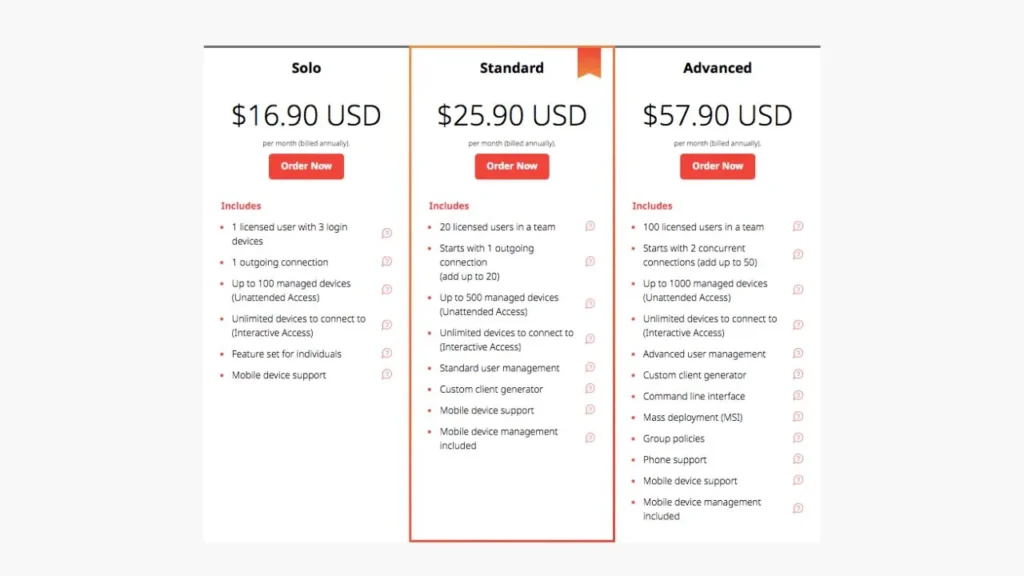
In summary, beginners and small users can start with the free AnyDesk download on their PC, while businesses can upgrade to paid tiers for more capabilities and services.
AnyDesk System Requirements
Operating System
AnyDesk for Windows runs on all modern Windows versions. Supported OS includes Windows 7, 8.1, 10, 11 (32-bit and 64-bit), as well as older editions down to Windows XP SP2. It also works on Windows Server editions (2003, 2008 R2, 2012, 2019).
Hardware
For the best experience, a dual-core (or higher) processor, 2 GB or more of RAM, and hardware-accelerated graphics (Direct3D) are recommended. Enabling Windows Aero (hardware compositing) can also improve performance. The list below summarizes Windows requirements:
- Windows: 7, 8.1, 10, 11.
- Processor: Dual-core 2.0 GHz (or faster) recommended.
- RAM: 1 GB (2 GB+ recommended).
- Graphics: DirectX/Direct3D capable, 32 MB VRAM.
- Hard Disk: 20 MB.
- Sound Card: Required for AnyDesk voice chat.
- Microphone: required for AnyDesk voice chat.
- Internet: Broadband for best results (works on 100 kbps too).
If your PC meets these specs, AnyDesk will run smoothly on Windows. It is notable that even very modest hardware (e.g. older laptops) can host an AnyDesk session, albeit with reduced graphics quality if needed.
Conclusion
AnyDesk is a fast, lightweight, and secure remote desktop solution for Windows. It combines a simple, beginner-friendly interface with powerful features like file transfer, unattended access, and end-to-end encryption.
Whether you need to remotely troubleshoot a PC, access your home desktop, or collaborate across devices, AnyDesk makes it easy. Downloading AnyDesk for Windows is quick (no install necessary) and free for personal use.
For businesses, paid plans offer additional convenience and support. In summary, AnyDesk provides a high-performance, user-friendly way to control Windows computers from anywhere.
Setup Details
- Software Name: AnyDesk
- Download File Size: 10 MB
- Application Type: Free / Full Standalone Setup
- Compatibility: Both (32-bit and 64-bit)
- File Format: WinRAR File
- Password: theleanerz.com
AnyDesk Download Links
Note: Password for all files is thelearnerz.com
By clicking this button your download will start automatically, after the countdown. Please click only once and wait for the application to begin downloading.
Download AnyDeskIf you want to download AnyDesk from Official site please visit @AnyDesk.


It is excellent idea