Table of Contents
What is MiniTool Partition Wizard?
MiniTool Partition Wizard is a disk partition management software for Windows. It allow users to manage hard drives, SSDs and other storage devices easily without needing advance technical knowledge. It is commonly used to create, delete, resize, move, merge, split and format partitions. It also provide advanced features like converting between MBR and GPT, FAT32 and NTFS or even basic and dynamic disks. You can also copy entire disks or migrate an OS from HDD to SSD without reinstalling Windows. It is mostly used for recover lost/deleted files or partitions. It also helps to check file system errors, test disk performance and fix partition problems. It securely wipe data so it cannot be recovered.
User Interface and Ease of Use
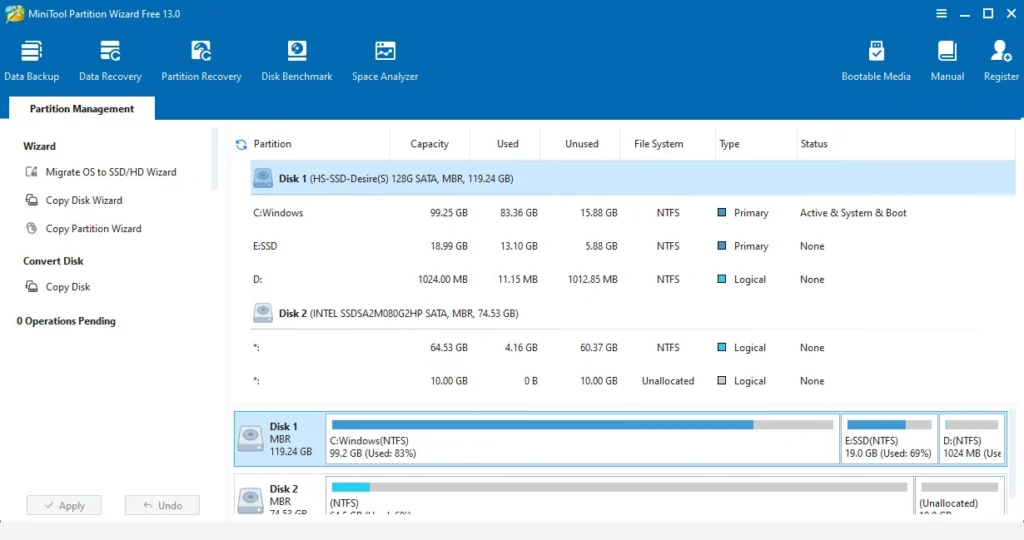

MiniTool Partition Wizard is very easy to use even if you are a beginner. When you open the software you will see all the important tools like create, delete, resize, move and format partitions clearly on the main screen. The layout is clean, simple and not confusing. For more advanced tasks like copying a disk or moving Windows from one drive to another the software gives you step by step guides (called “wizards”). These guides tell you exactly what to do step by step so you don’t make mistakes. Another helpful feature is the preview option. The program shows a preview before making any changes to your hard drive. It helps you make sure everything is correct before you change anything.
Why Use MiniTool Partition Wizard?
There are many disk utilities, but MiniTool Partition Wizard stands out because of these advanced features:
All-in-one disk tool
MiniTool Partition Wizard is an all in one disk management tool that lets you manage partition management, data recovery, disk cloning, OS migration and disk performance testing in a single program. Instead of using multiple tools you can handle everything from creating and resizing partitions to recovering lost data with this one software.
Wide compatibility
The software works with Windows 7 to Windows 11 and supports common file systems like NTFS, FAT32, exFAT and Ext. It also supports SSDs, dynamic disks and modern hardware making it suitable for most setups.
Safe and efficient
MiniTool Partition Wizard keeps your data safe with tools like secure wipe which erases files permanently and power off protection to avoid damage during tasks. Whether for home use or setting up multiple systems it’s a reliable and easy choice.
Key Features of MiniTool Partition Wizard
1. Comprehensive Partition Management
With Partition Wizard you can create, resize, move, merge, split, format, delete, wipe or hide partitions in just a few clicks. You can extend a full drive, shrink a large one or move free space safely. All actions are designed to protect your data and are easy to follow so you can manage your disks without extra help.
2. Partition and File System Conversion
One big advantage of Partition Wizard is its ability to convert disks and file systems. You can switch between MBR and GPT, set partitions as primary or logical and even change FAT32 to NTFS without losing data. This makes it easy to use large files and keeps your drives ready for modern hardware or Windows needs.
3. Disk Copy and OS Migration
MiniTool Partition Wizard lets you clone partitions or whole disks without losing data. It has power off protection to keep your files safe while working and migrate OS from one disk to another that lets you move Windows to a new drive in just a few steps. It helps you safely switch to a faster SSD or back up your system without trouble.
4. Disk Utilities
Partition Wizard offers extra tools for safety and analysis. The Partition Recovery wizard can restore lost or deleted partitions while Space Analyzer shows which files take up the most space. You can test drive speed with Disk Benchmark or use Wipe Partition to erase data permanently. These tools help you manage, fix and protect your drives more easily.
5. Surface Test
MiniTool Partition Wizard includes a Surface Test tool that checks your hard drive or SSD for bad sectors. Bad sectors are damaged areas on a disk that can cause data loss, errors or slow performance. The Surface Test scans the entire drive block by block and marks any problem areas in red while healthy sectors are shown in green.
This feature is very useful if your computer is running slowly files are becoming corrupted or you suspect your drive might be failing. By identifying bad sectors early you can back up important data and replace the drive before it completely breaks down.
6. Disk Benchmark

The Disk Benchmark tool in MiniTool Partition Wizard measures the speed of your hard drive, SSD or external storage. It tests read and write speeds under different conditions and then shows the results in an easy to understand graph.
This feature helps you check how fast your drive really is compare performance between different disks or find out if a drive is slowing down. It’s especially useful when testing a new SSD, monitoring an old hard drive or troubleshooting slow performance.
7. Wipe Data

The Wipe Data feature in MiniTool Partition Wizard securely erases files so they cannot be recovered. Unlike a normal delete which only removes file references this tool overwrites the disk sectors with random data making recovery impossible even with advanced software.
It’s especially useful when selling, donating or disposing of a computer or hard drive as it protects your personal information from being restored by others. You can choose different wipe methods depending on how securely you want the data erased.

8. Data Recovery
MiniTool Partition Wizard’s Data Recovery feature helps you restore lost or deleted files and partitions. If you accidentally delete a partition, format a drive or lose files due to system crashes this tool can scan your disk and recover them.
It works on hard drives, SSDs, USB drives and memory cards supporting many file types like documents, photos, videos and more. The scan results are shown in a clear list so you can preview files before restoring them.
This feature is included only in the paid editions but it can be a lifesaver if you’ve lost important data.
How to Download MiniTool Partition Wizard
To get started with MiniTool Partition Wizard on your PC, follow these steps:
Step 1: Download MiniTool Partition Wizard
- Go to the Download Link.
- Click on the download button to start downloading MiniTool Partition Wizard.
Step 2: Extract and Run the Setup
- Right click the file and select “Extract Here“. (You’ll need a tool like WinRAR or 7-Zip to extract it.)
- After extraction, run the MiniTool Partition Wizard.exe file to install program.
- Follow the on screen steps.
- Done! You have successfully downloaded and installed MiniTool Partition Wizard.
Is MiniTool Partition Wizard Free or Paid?
MiniTool Partition Wizard uses a freemium model with both free and paid versions.
Here’s a quick breakdown:
Free Version
The free edition includes basic tools like create, delete, format, move/resize partitions. It supports all the common disk management operations you need, and it is fully compatible with Windows 7, 8, 10 and 11. The free edition is sufficient for everyday disk tasks for most of the users.
Paid Plans
Advanced features like partition recovery, dynamic disk management, and full disk cloning come only with the paid editions. The standard Pro plan is an annual subscription, thats start with $59 per PC.
If you want to check pricing for all plans visit: @Check_Pricing
System Requirements
Before installing, make sure your PC meets these specifications:
Operating System
MiniTool Partition Wizard is compatible with all Windows systems and has very low pc requirements. In fact, even older PCs can run MiniTool Partition Wizard smoothly.
- Windows: Windows 7 or above.
- Processor: Pentium-4, 1 Ghz or higher.
- RAM: At least 1 GB.
- Graphics: not required.
- Hard Disk: 200 MB.
- Sound Card: not required.
- Microphone: not required.
- Internet: not required.
Conclusion
If you’re looking for a reliable partition manager, MiniTool Partition Wizard is a great option. It offers an excellent combination of features, performance and ease of use. The free edition covers most standard tasks and the interface is beginner friendly. Advanced users can unlock even more capabilities by upgrading. Overall, Partition Wizard is a trusted tool to optimize and manage your disk partitions definitely worth a try for anyone working with PCs and storage devices.
Setup Details
- Software Name: MiniTool Partition Wizard
- Download File Size: 3.10 MB (version 13)
- Application Type: Free Online Installer
- Compatibility: Both (32/64-bit)
- File Format: WinRAR File
- Password: theleanerz.com
Download Links
Note: Password for all files is thelearnerz.com
By clicking this button your download will start automatically, after the countdown. Please click only once and wait for the application to begin downloading.
DownloadIf you want to download MiniTool Partition Wizard from Official site please visit @MiniTool Partition Wizard.