Table of Contents
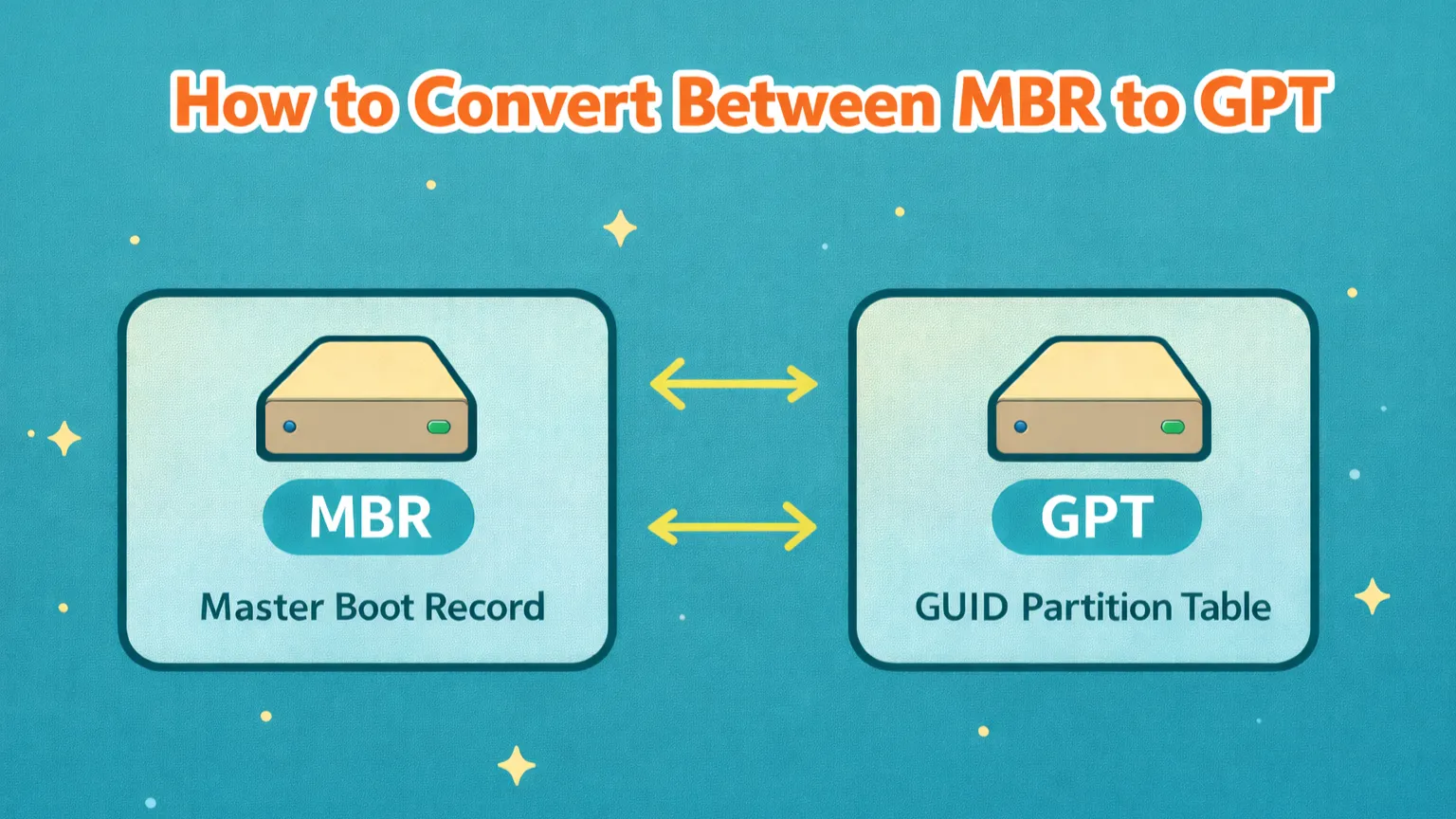
What is MBR and GPT?
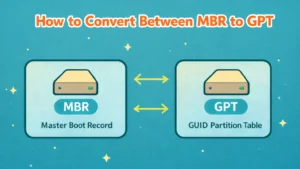
MBR and GPT are two types of disk partitioning schemes:
MBR (Master Boot Record):
A traditional partitioning method that stores the disk’s bootloader and partition table in the first sector of the disk. It tells the system how the disk is organized and where to start loading the OS.
GPT (GUID Partition Table):
A modern partitioning method that uses globally unique identifiers (GUIDs) for partitions and stores multiple copies of the partition table for better reliability. It works with UEFI systems and allows advanced disk management.
MBR VS GPT which is better ?
GPT is better than MBR, You can see the comparison below in the table.
| Feature | MBR (Master Boot Record) | GPT (GUID Partition Table) |
|---|---|---|
| Introduced | ❌ 1983 (too old) | ✅ 2000 |
| Maximum disk size | ❌ 2 TB (very limited) | ✅ 1,000,000,000 TB |
| Maximum partitions | ❌ 4 primary (very limited) | ✅ 128 primary |
| Boot mode support | ❌ Legacy BIOS only | ✅ UEFI only |
| Partition structure | ❌ Single partition table | ✅ Multiple partition tables |
| Data protection | ❌ No redundancy | ✅ Backup partition table |
| Best for | ❌ Old PCs | ✅ Modern PCs |
| Secure Boot support | ❌ No | ✅ Yes |
| Large disks (>2TB) | ❌ Not supported | ✅ Fully supported |
| Future-proof | ❌ No | ✅ Yes |
Tools to convert MBR to GPT
Below is a clear comparison of the different tools, showing which method is best for converting disks and partitions from MBR to GPT.
| Method | Data Loss | OS Disk Support | Notes |
|---|---|---|---|
| Windows Disk Management | ❌ Yes | ❌ No | ❌ erases all data |
| DiskPart (CMD) | ❌ Yes | ❌ No | ❌ erases all data |
| MBR2GPT | ✅ No | ✅ Yes | ⚠️ Uses Command Line |
| MiniTool Partition Wizard | ✅ No | ✅ Yes (Pro Version) | ✅ saves data, easy to use |
As you can see, MiniTool Partition Wizard is one of the easiest and safest tools for this task.
In this tutorial, we will use MiniTool Partition Wizard Free Edition to convert a disk from MBR to GPT.
Things to Do Before Converting MBR to GPT
Before converting, prepare the following:
To convert MBR to GPT Or vice versa, you’ll need to install MiniTool Partition Wizard on your computer.
Once you’ve successfully installed MiniTool Partition Wizard Free Edition, you can proceed with the steps to convert your disks OR partitions from MBR to GPT OR vice versa.
Important Notes
MiniTool Free Edition does not support MBR to GPT conversion for OS disks.
You must use the MiniTool Partition Wizard Pro to convert your OS disk.
This tutorial applies only to data disks.
It does not cover MBR to GPT conversion for the operating system disk.
How to convert MBR to GPT using minitool partition wizard
Now, we will convert our secondary disk from MBR to GPT.
We are not converting the C drive—this method works only for data disks, not the operating system disk.
Warning: This method is only for data disks.
Do not apply it to the C drive or system disk, or your computer may fail to start.
Step 1: Open MiniTool Partition Wizard
Run MiniTool Partition Wizard as Administrator
(Right click → “Run as administrator”)
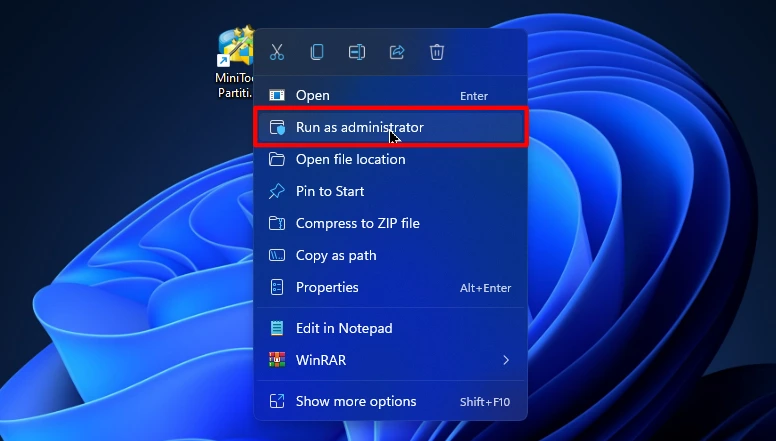
Note: Close all running programs
Step 2: Lets Convert MBR to GPT Disk
Right-click on the disk you want to convert and select Convert MBR Disk to GPT Disk.
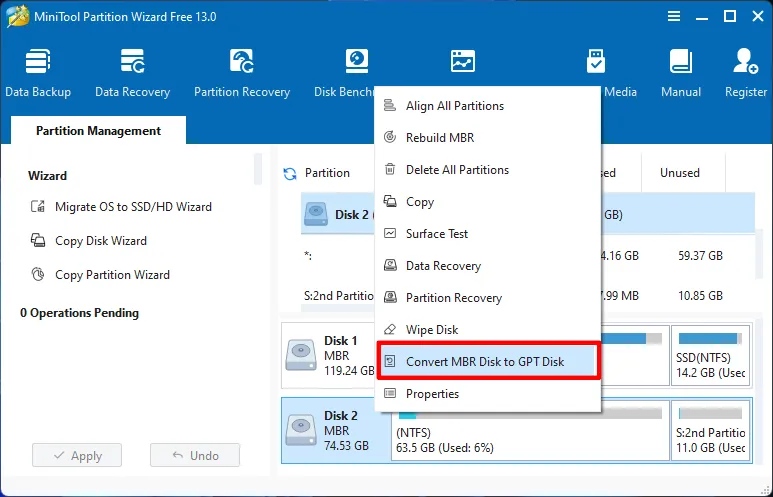
Reminder: Don't convert your C: drive Or System disk.
If you want to convert a system disk from MBR to GPT, check this guide:
How to Convert System Disk from MBR to GPT
Step 3: Apply the changes
Click the “Apply” button in the bottom-left corner to confirm the changes.
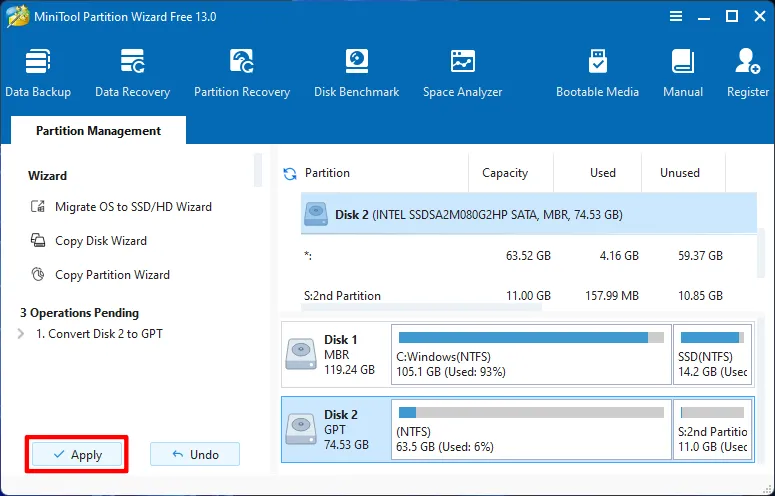
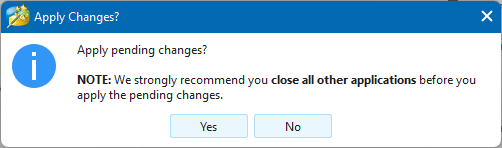
When the confirmation window appears, click the “Yes” button to apply the changes.
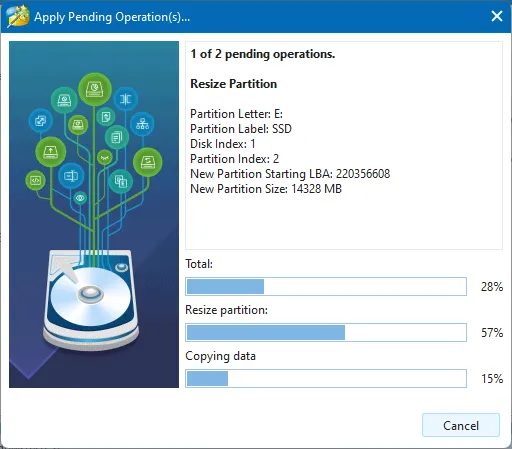
Now, wait until the process completes 100%.
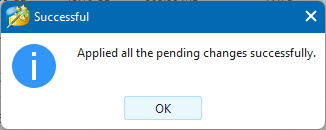
✅ Congratulations! Your Disk has been Converted to GPT Successfully
You can Also do this Process in reverse to convert it from GPT to MBR.
How to Convert System Disk from MBR to GPT
In this video, you’ll learn how to convert an MBR disk to GPT using the Windows built-in MBR2GPT tool.
Make sure to watch the entire video carefully. Skipping steps or missing details may cause data loss or system problems.
More Disk Management Tutorials
Frequently Asked Questions
Yes, you can convert MBR to GPT without data loss by using the Windows built-in MBR2GPT tool or third-party tools like MiniTool Partition Wizard (paid version).
Yes, the system disk can be converted using the MBR2GPT tool. Other methods like Disk Management and DiskPart do not support OS disk conversion.
No, the Free Edition of MiniTool Partition Wizard does not support MBR to GPT conversion. You need the Pro or higher version.
No, dynamic disks cannot be converted from MBR to GPT. The disk must first be converted to a basic disk.
Converting the C drive using unsupported methods can make your system unbootable. Always use MBR2GPT and follow the instructions carefully.
MBR2GPT is the safest method for converting a system disk, while third-party tools are suitable for data disks.
No, if MBR2GPT is used correctly, Windows does not need to be reinstalled.
Conclusion
Converting a disk between MBR and GPT in Windows 11 is simple if you follow some basic precautions. Always back up your data before making any changes to disks or partitions. Make sure you are using the official, updated version of MiniTool Partition Wizard. The Free Edition works only for data disks, while converting the operating system disk requires the Pro version. That’s why, in this tutorial, we converted the system disk using MBR2GPT, the official Microsoft tool.
After making any changes to your disks, restart your PC. If you convert your C drive from MBR to GPT, reboot and change your BIOS from Legacy to UEFI mode.
If you don’t need any features provided by the GPT partitioning scheme, there is no need to change your partition table. For many users, it’s fine to keep the disk as MBR. Converting a system disk from MBR to GPT can cause problems, so double-check everything carefully before applying changes.