Table of Contents
Why You Might Need to Merge Partitions
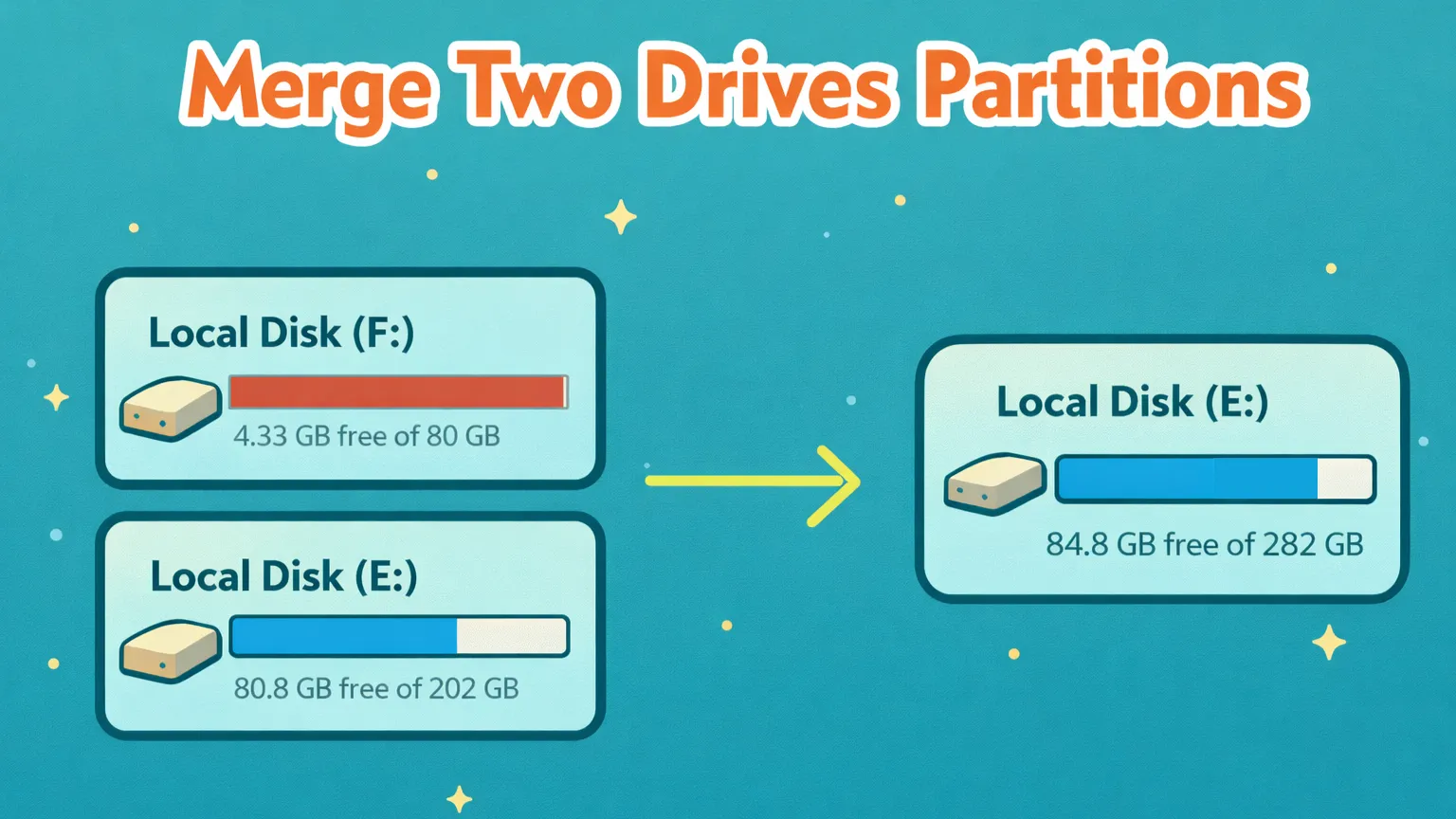
There are several reasons to merge partitions. For instance, if your primary drive is running out of space while another remains unused, merging them allows you to consolidate that free storage. Instead of simply extending a volume, you can combine a redundant partition with an active one to manage your data more efficiently.
If a drive like D or E is almost full, you may face problems such as files failing to copy, errors while saving data, or not having enough space to install software, games, or store backups. This usually happens because large files, videos, photos, or applications slowly fill up the partition, and deleting them is not an option because the data is important.
Merging partitions allows you to reorganize disk space without reinstalling Windows or losing important files, especially when done using the right tools. It’s a practical solution when your current partition layout no longer fits your storage needs and you want a cleaner, more efficient way to manage your data.
Methods to Merge Partitions
There are several ways to merge disk partitions without losing data.
- Merge partitions with the Windows Disk Management tool
- Merge partitions using Command Prompt (CMD)
- Manage partitions using the DiskPart command line utility
In this tutorial, we’ll focus on using MiniTool Partition Wizard to merge partitions safely.
Why MiniTool Partition Wizard Is Better Than Disk Management
| Feature | Disk Management | MiniTool Partition Wizard |
|---|---|---|
| Powerful & flexible | ❌ No | ✅ Yes |
| Works on all partitions | ❌ No | ✅ Yes |
| Merge or split partitions | ❌ No | ✅ Yes |
| Reliable for system drive | ❌ No | ✅ Yes |
| Handles all partition issues | ❌ No | ✅ Yes |
| Beginner friendly UI | ❌ Not really | ✅ Yes |
If you try to merge partitions using Windows Disk Management, you might face common problems such as:
- The “Extend Volume” or “Shrink Volume” options are greyed out.
- You cannot merge partitions without deleting one.
- The partition is not formatted as NTFS.
- System or recovery partitions block changes.
In this guide, we’ll show you how to safely merge any partition in Windows 11 using MiniTool Partition Wizard, resolving these issues without losing your data.
Before You Start: Important Things to Know
To merge partitions without Disk Management, you’ll need to install MiniTool Partition Wizard on your computer.
If you haven’t installed it yet, follow this guide:
Once you’ve successfully installed MiniTool Partition Wizard, you can proceed with the steps to merge partitions.
Check Partition File System:
Before attempting to merge partitions with MiniTool Partition Wizard, you must verify the file system of both drives.
- The NTFS Requirement: For a seamless merge, MiniTool usually requires the partitions to be formatted as NTFS. If one of the partitions is FAT12, FAT16, or FAT32, the merge feature may be greyed out or fail to execute.
Note: Both partitions must be formatted as NTFS.
- MiniTool Partition Wizard’s merge function is currently compatible only with NTFS partitions. If either partition is FAT32, Convert FAT to NTFS to avoid errors.
How to check your format:
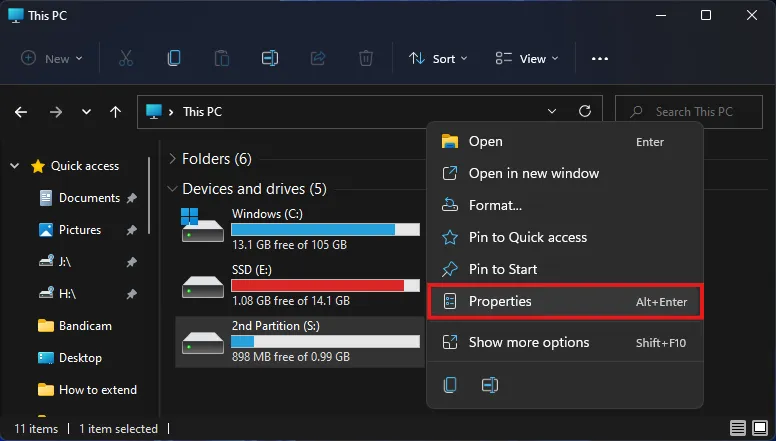
Right-click the partition and select Properties.
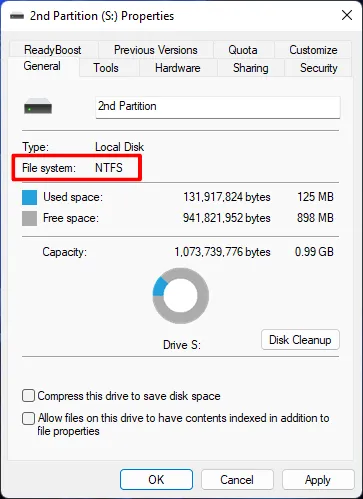
Check the popup window to confirm the File System is NTFS.
Convert Before Merging: If you discover one of your partitions is FAT32, you do not need to format it and lose your data. You can use the “Convert FAT to NTFS“ feature within MiniTool Partition Wizard first, and then proceed with the merge.
How to Merge Partitions Using MiniTool Partition Wizard
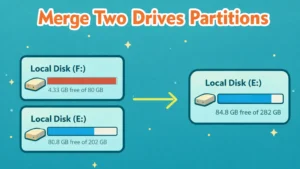
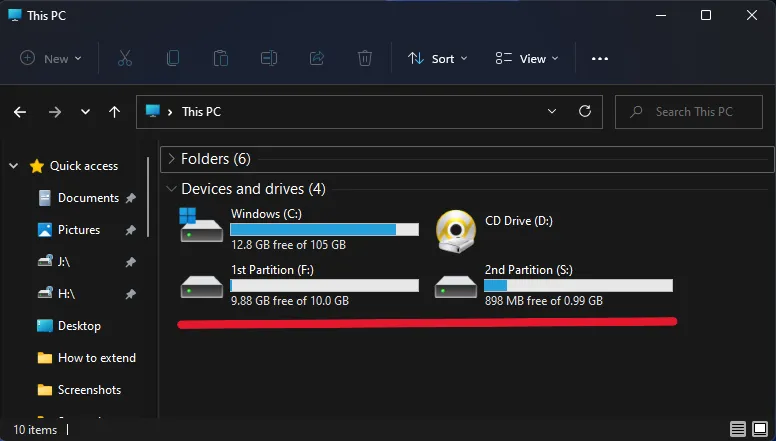
We will now merge the 1st Partition (F:) into the 2nd Partition (S:). MiniTool Partition Wizard automatically moves all data from drive F: to drive S: during this process.
Warning: Always back up your important files before making changes to your disk partitions.
Step 1: Open MiniTool Partition Wizard
Note: Close all running programs
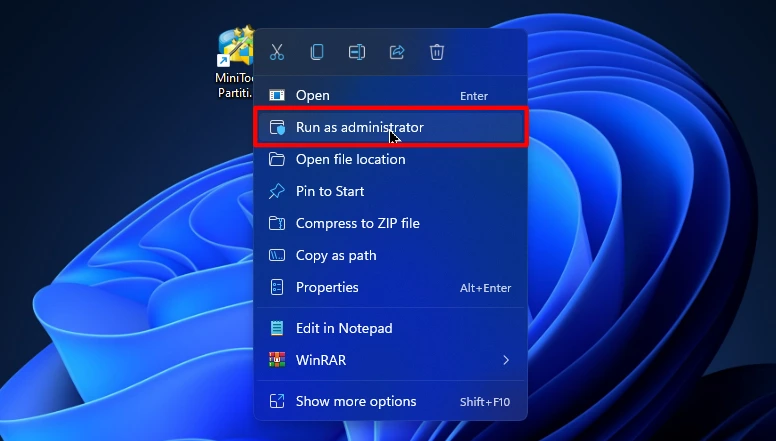
Run MiniTool Partition Wizard as Administrator
(Right click → “Run as administrator”)
Step 2: Open Merge Partition Window
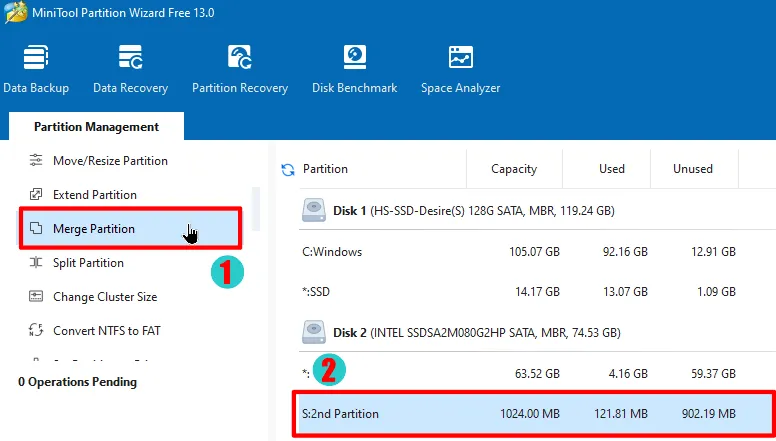
First, select the partition you want to merge by clicking on it. Then, select the Merge Partition option from the left sidebar under ‘Partition Management’.
Step 3: Merge Partitions
Note: You can only merge partitions that are located on the same physical drive (e.g., both must be on Disk 1, or both on Disk 2)
select the partition you want to expand. In our example, we are selecting S: 2nd Partition (the one that will remain after the merge).
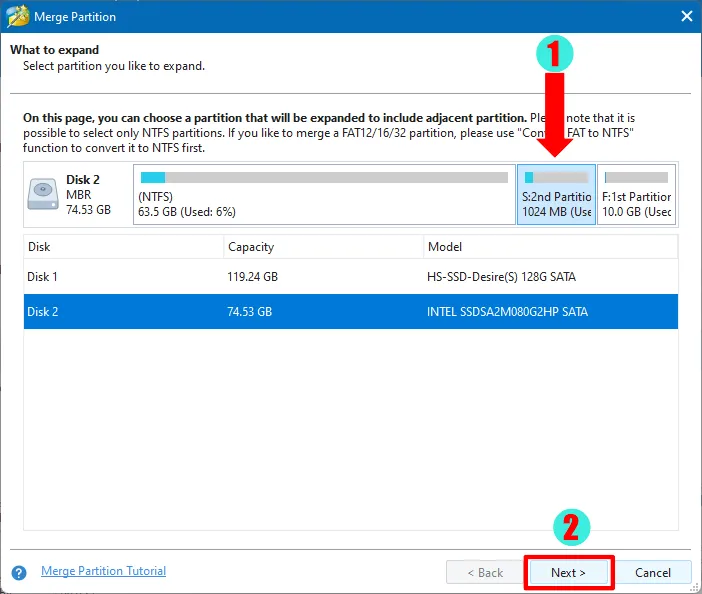
Now, a new window appears. You must select the adjacent partition you want to merge into your target drive.
- Select the partition: In our example, select F: 1st Partition from the list.
- Specify a folder name: In the box at the bottom, name the folder where all data from drive F: will be stored after the merge (we used
first_partition_data). This folder ensures none of your existing data is lost.
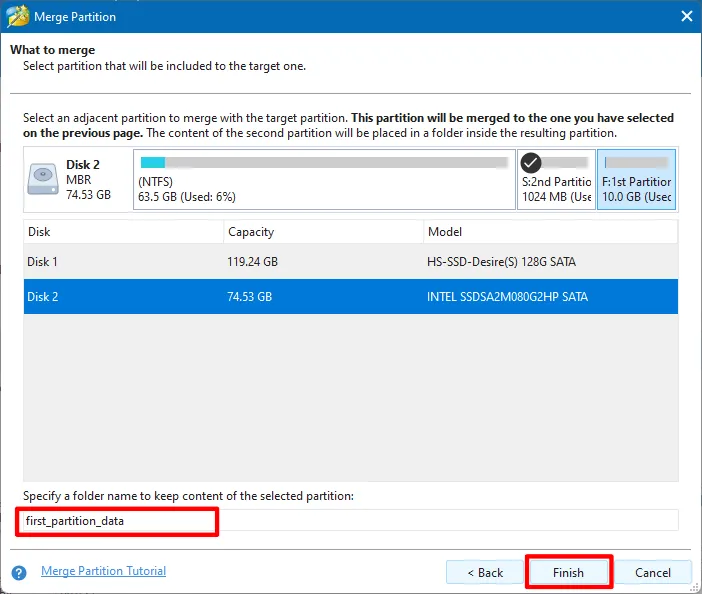
Once both items are confirmed, click the Finish button to proceed.
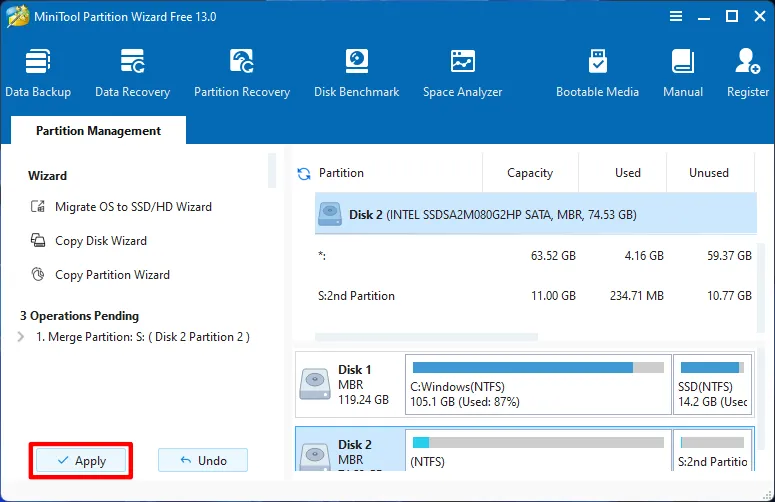
Step 4: Apply the Merge
Click the “Apply” button in the bottom-left corner to confirm the changes.
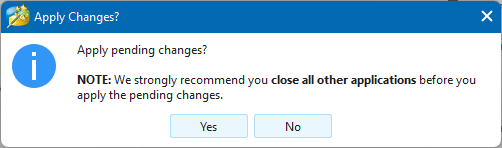
When the confirmation window appears, click the “Yes” button to apply the changes.
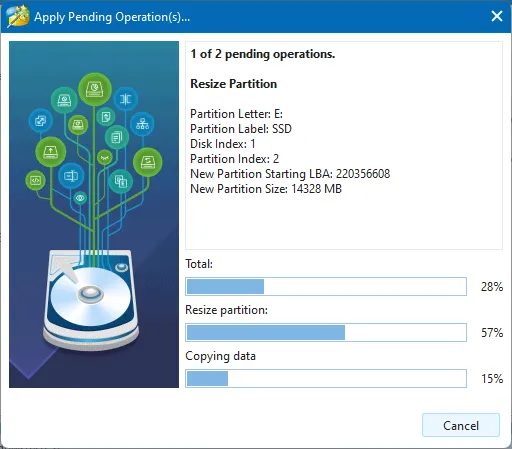
Now, wait until the process completes 100%.
✅Congratulations! Your Both Partitions has been Merged Successfully
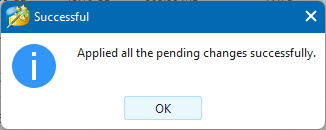
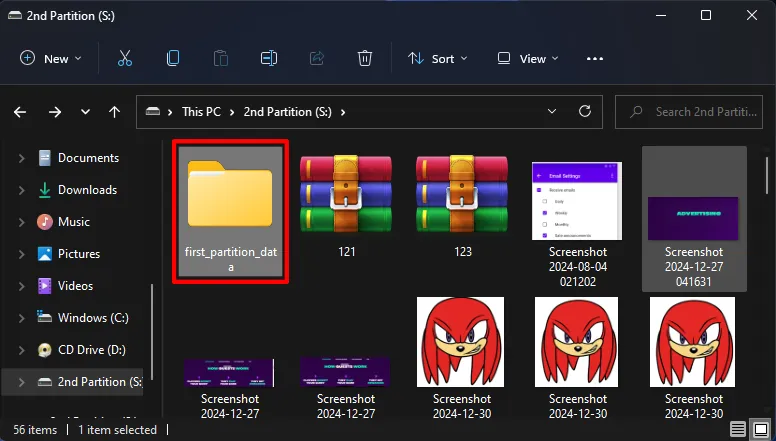
The partitions are now successfully merged. It is time to open the final, expanded partition S: in File Explorer and verify that all the data from the original F: 1st Partition has been automatically shifted into the new folder we created (first_partition_data).
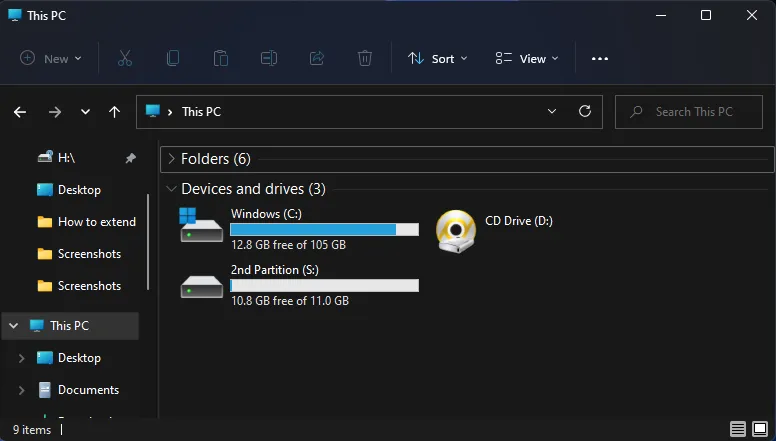
You can now see the folder first_partition_data within the 2nd Partition (S:). All of your original data from the 1st Partition (F:) is safely saved inside this folder, while the files outside the folder are the original contents of the S: partition.
Common Issues When Merging Partitions
1. “Extend Volume” Greyed Out:
Windows only lets you extend NTFS or RAW partitions if unallocated space is right next to them. If it’s greyed out, use MiniTool or move/delete any partitions in between.
2. No Free MBR Slot:
MBR disks can have a maximum of 4 primary partitions. If you see a “max partitions reached” message, convert one primary partition to logical or switch the disk to GPT. MiniTool can do this safely without losing data.
3. Disk is “dynamic” or “basic”:
MiniTool cannot merge partitions on a dynamic disk. Avoid converting basic disks to dynamic unless necessary. Stick with basic or logical partitions instead.
4. File System Issues:
FAT32 partitions cannot merge with NTFS. Convert FAT32 to NTFS first, or reformat.
5. Adjacent Partition:
An adjacent partition is a disk partition that is located directly next to the partition you want to merge on the same hard drive.
If the partition you’re trying to merge is not immediately next to the partition you want to extend, the merge or extension will not work.
6. System Partition Locked:
Modifying C: or the boot drive usually requires a reboot. MiniTool will prompt you, allow it to restart to complete the operation safely.
7. Power Interruptions:
Make sure your laptop has enough battery or the PC is on a UPS. Sudden shutdowns can corrupt data. MiniTool’s “Enhanced Data Protecting Mode” helps prevent this keep it on.
8. Other Errors:
If you face issues not listed here, Check MiniTool’s support site or forums for additional help.
Alternative Partition Tools
If you prefer other software or need different features, here are some alternatives:
EaseUS Partition Master
A popular tool with free and paid editions. It supports extending, shrinking, moving and merging partitions, including system partitions. It can also allocate space from one drive to another. EaseUS provides a guided wizard for extending partitions similar to MiniTool. Download from the EaseUS Official site.
AOMEI Partition Assistant
A free partition manager with a simple interface. The Standard edition lets you resize, move, extend, shrink and merge partitions without data loss. It also has features like disk cloning and MBR/GPT conversion. Download from the AOMEI’s Official site.
Windows Disk Management
This is built-in windows tool. You can shrink, extend, merge and do many other Disk Operations.
Frequently Asked Questions
An adjacent partition is a disk partition that is located directly next to the partition you want to merge. MiniTool Partition Wizard can only merge partitions that are immediately beside each other on the same disk.
No. Partitions must be adjacent to each other to be merged. If they are not next to each other, you will need to move or delete the partition in between first.
Yes, you can merge the C and D drives if D is directly adjacent to C and both partitions are on the same hard drive. Always back up important data before merging system partitions.
Yes. MiniTool Partition Wizard supports merging FAT32 partitions. However, NTFS is recommended for better stability and support, especially for large drives.
Yes. You can merge NTFS and FAT32 partitions. The merged partition will use the file system of the main partition you select during the merge process.
MiniTool Partition Wizard is designed to merge partitions without deleting data. However, creating a backup is highly recommended to avoid any risk.
No. Only partitions on the same physical disk can be merged. Partitions on different drives cannot be combined.
You may not be able to merge partitions if they are not adjacent, not on the same disk, or if one partition contains system or recovery files currently in use.
Yes. MiniTool Partition Wizard is a trusted partition management tool used by millions of users worldwide when downloaded from the official website.
Yes, in some cases. If system partitions are involved, MiniTool may require a restart to complete the merge operation.
More Disk Management Tutorials
Conclusion
Merging partitions in Windows 11 is easy with MiniTool Partition Wizard’s Free Edition, as long as you follow the steps and heed the requirements. For basic data partitions you can split large drives into smaller ones or merge two NTFS volumes without losing data. Remember to back up your data and note limitations on MBR disks or system (C:) partitions. If you run into issues like “No free MBR slots” or grayed-out extend options, the solutions above will guide you through safely.
Finally after making changes reboot your computer and verify that all files are accessible and that disk space is as expected. With these tools and tips you can flexibly manage your disk space on Windows 11.